Mastercard Avios Prototype
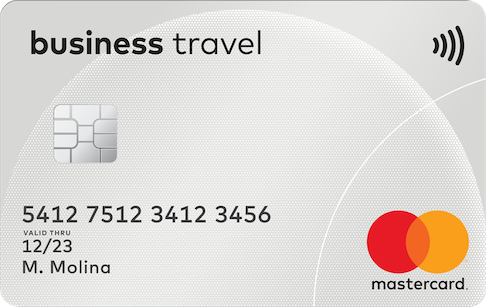
This guide shows how to get the Airlines demo application (app) installed and running on an iPhone. This guide is version 1.0 Published July 2021.
GETTING STARTED
Before you start you will need:
- An iPhone 6
- A copy of the app file
- Web access
- This guide
Where to get help
Please contact your agency project lead.
INSTALL THE APP
NO NEED TO RE-INSTALL
If the apps are already installed, you do not need to re-install them
Step 1 Install supporting tools
There are two apps to install here.
- Dropbox
Go to https://www.dropbox.com and create an account.
On the iPhone go to the Appstore and search for the Dropbox app. Install that app:
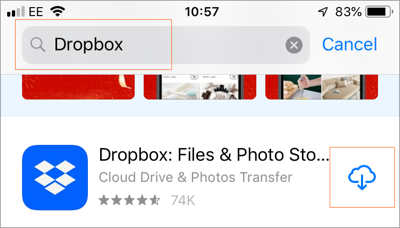
Once the install is complete upload the demo app file to the Dropbox account you just created.
- Principle
Repeat step 1 to install Principle.
Step 2 - Install Principle
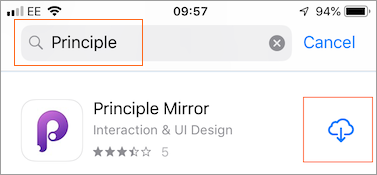
On the iPhone go to the Appstore and search for the Principle Mirror app. Then install that app on the iPhone:
THE INSTALLATION IS NOW COMPLETE
If everything went as expected please move on to the next step
LAUNCH THE APP
TO RE-LAUNCH
Once completed no further install is required. Open Principle on the iPhone to launch the app. The file does not need to be re-exported.
Step 1 - Export the file
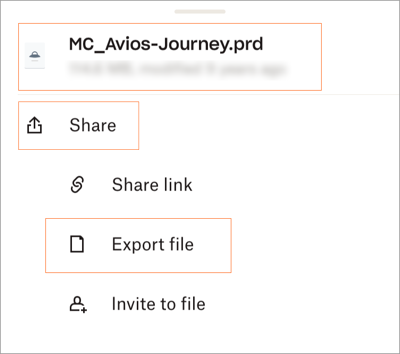
Open the Dropbox app on the iPhone. Select the app file in Dropbox > select the Share link > select the Export File link:
Step 2 - Copy to Principle
Select the Copy to Principle link:
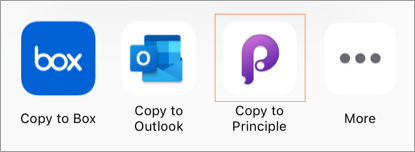
The file will export:
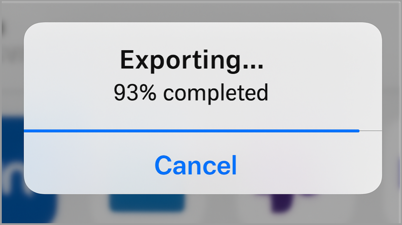
After a few moments the Principle screen will be displayed:

The App will then launch. A dummy iPhone home screen is displayed.
Step 3 - Open the app
Select the Avios link:
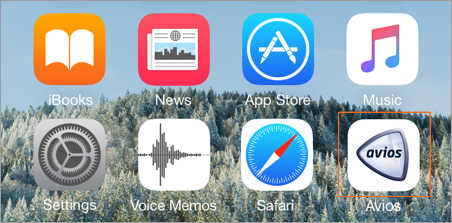
The Avios app home screen is displayed:
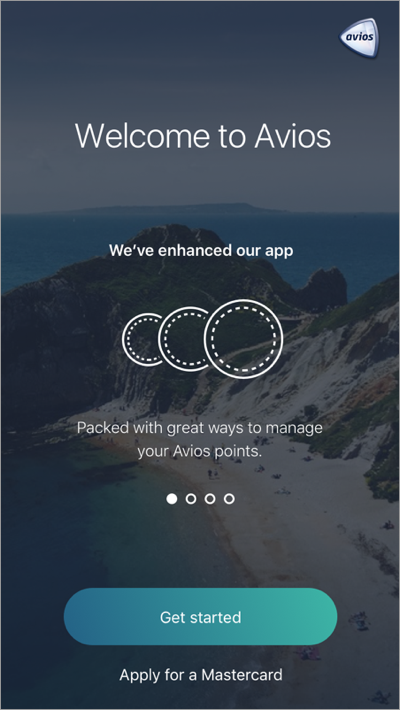
The app is now ready to use
Move to the next step
Step 4 - Use the app
Select Get Started.
The menu screen is displayed.
On the menu screen there are several user flows through the app. Select 01 Onboarding Journey and click through the user journey:
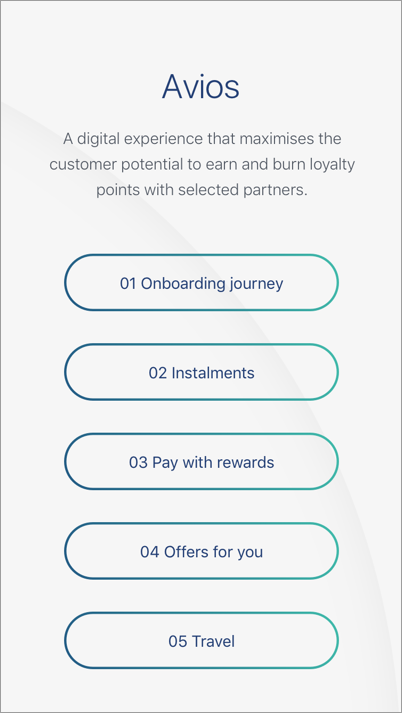
Repeat with other flows as you wish.
To return to the home screen exit and restart the Principle app.