Setting Permissions for your cloud applications
For Coro to monitor and report security issues, at least one cloud application must be connected.
Note
To see a list of supported cloud applications, see Introducing cloud security.
Coro supports the ability to set access permissions for connected cloud applications. Admin users with sufficient permissions can allow access to a cloud application based on whether a user meets a defined set of criteria.
Configuring new access permissions
To configure new access permissions for a connected cloud application:
-
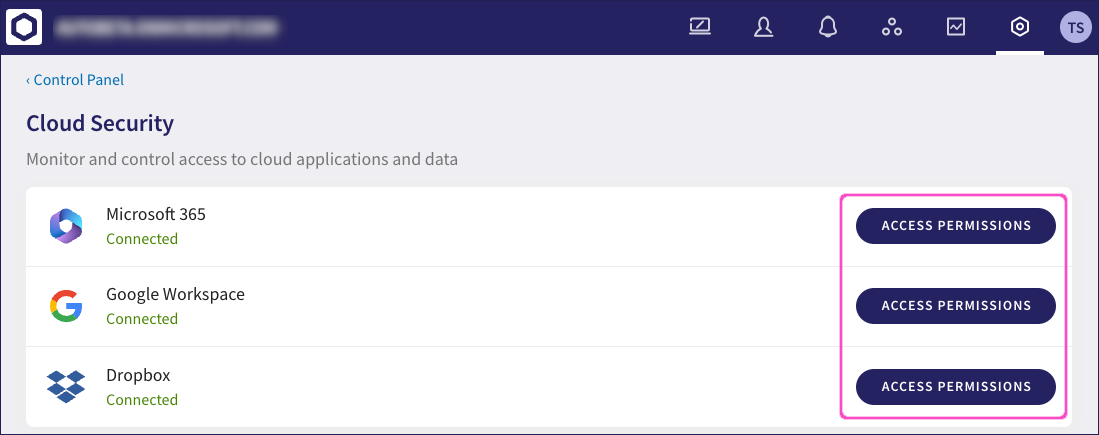
Sign into the Coro console and go to Control Panel > Cloud Security.
-
From your list of connected cloud applications, select the corresponding ACCESS PERMISSIONS option:
Attention
If your selected application has no current access permissions set, Coro shows a banner page instead:

In this scenario, select NEW PERMISSIONS to start the process.
-
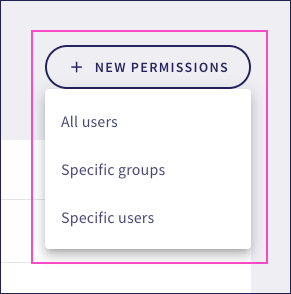
Select from the permission levels displayed:
-
All users: The new permission applies to everyone.
-
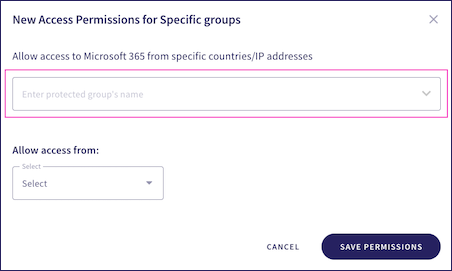
Specific groups: The new permission applies to a named group within the corresponding cloud application:
Note
When a user belongs to several groups, they inherit the collective permissions of all those groups.
-
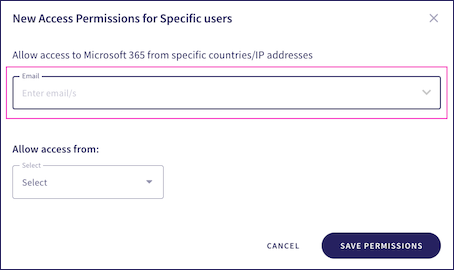
Specific users: The new permission applies to users within the application, specified by their email addresses:
Note
You can assign access permissions to existing admin users within the corresponding cloud application.
-
-
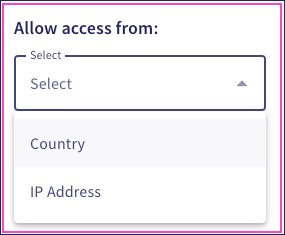
Select IP Address or Country from the following Allow access from options:
-
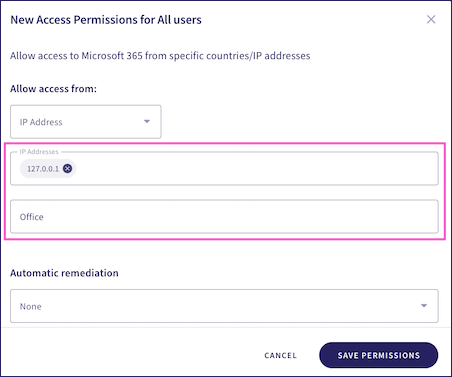
IP Address: Restricts access to a defined range of IP addresses. Enter the allowed IP addresses into the IP Addresses field and provide an optional short description:
-
Country: Restricts access to named countries or US States. Select either All Countries or USA states:
Warning
US state permissions are independent of country permissions. You can select several countries and/or states. If United States is selected as a Country then permissions apply to all US states.
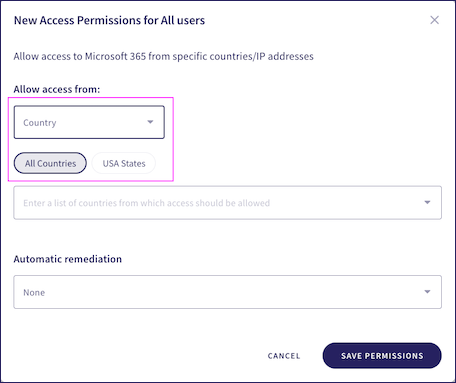
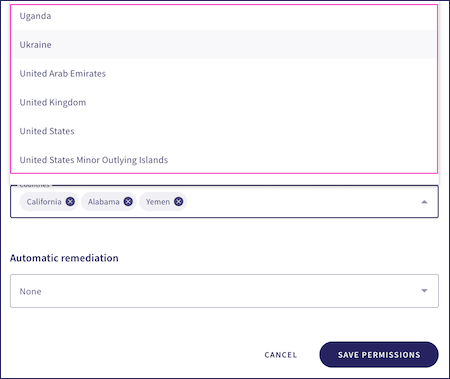
A list of countries or US states appears based on your selection for Allow access from. Select the US states and/or countries to allow access from:
-
-
Set the type of automatic remediation Coro should apply when a user that does not meet the permission criteria attempts to access the application. Choose from:
Setting Description None No remediation steps are required. Suspend The user account is automatically suspended. Sign in The user must re-enter their credentials. Coro creates an Access permissions violation ticket if a user successfully logs into a protected service from an origin in violation of the configured access rules.
-
Select SAVE PERMISSIONS to save your changes.
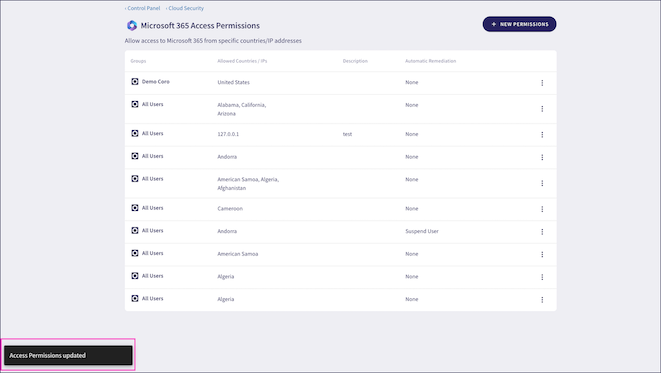
The New Access Permissions dialog closes and a confirmation message appears on the Cloud Security page:
Editing and deleting existing access permissions
Admin users with sufficient permissions can edit and delete existing access permissions.
To edit or delete existing access permissions for a connected cloud service:
- Sign into the Coro console and go to Control Panel > Cloud Security.
-
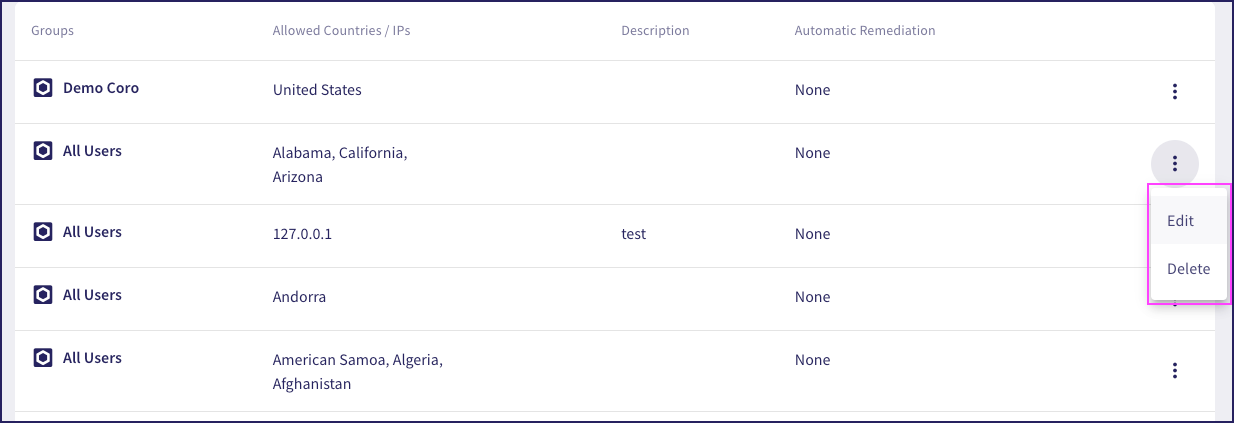
From your list of connected cloud applications, select the corresponding action from the 3-dot menu:
- Select Edit to change an existing access permission.
- Select Delete to remove an existing access permission.